
Working with Splines
A spline is an authored or generated path that other nodes can sample, measure, turn into rows, or use as a boundary. This guide follows the same structure as the other data-type guides: understand the value, author it, choose a manipulator, and inspect the attributes it produces.
Common workflow
Treat the spline as data, not as the final object
What a spline stores
Points
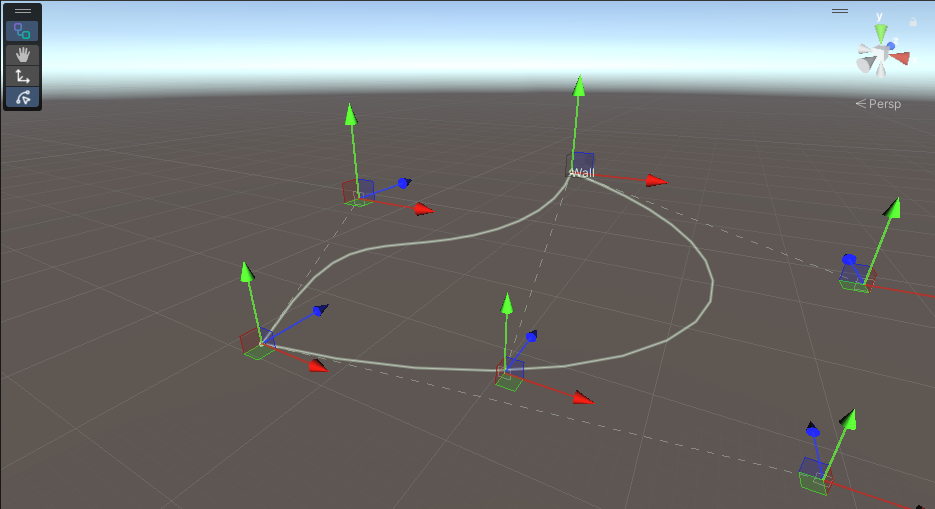
Linear splines connect each point directly. Bezier splines use anchors and handles to describe curved segments.
Open or closed
An open path has two ends. A closed path loops from its last segment back to its first.
Normalized position
t runs from 0 to 1 across the path. It describes progress through the spline, not a distance in world units.
Author a spline parameter
- Add a graph parameter and set its type to Spline.
- Choose Linear for corners and straight segments, or Bezier for a smooth path controlled by anchors and handles.
- Enable Closed when the path represents a loop or an area boundary.
- Add points or Bezier segments in the value editor, then switch the Scene view tool context to OctoShaper and choose the Spline tool.
The tool displays every spline parameter in the active graph. Dragging an anchor or Bezier handle updates the active configuration override when one is available; otherwise it updates the parameter's graph default. See Context Manipulation for the complete Scene view workflow.
Bezier layouts have a structure
An open Bezier chain uses an anchor followed by two handles and the next anchor. A closed chain repeats groups of three control points. The editor adds complete segments for you and warns when the layout is incomplete; an invalid Bezier layout is evaluated as a linear spline.
Choose a sampling node
| Node | Result | Use it when |
|---|---|---|
| Sample Spline | One position at a normalized t. | Another value or node needs a single point on the path. |
| Sample Spline Frame | One row with position, tangent, normal, and optional aligned rotation. | An object needs both a location and an orientation on the path. |
| Distribute Points On Spline | A chosen number of rows for every incoming row. | The count matters more than exact world-space spacing. |
| Distribute Points On Spline By Distance | Rows placed at approximately fixed world-space intervals. | Fences, lights, supports, or repeated details need consistent spacing. |
| Sample Spline Corners | Rows where the path changes direction beyond an angle threshold. | Corners need posts, joins, decorations, or special logic. |
Count and distance answer different questions
By count
“Give me 12 samples”
The normalized path is divided into a fixed number of samples. A longer spline spreads those samples farther apart. On Bezier curves, equal changes in t are not guaranteed to cover equal world-space distances.
By distance
“Place one every 2 metres”
The spline is measured and sampled at regular world-space intervals. Longer paths naturally produce more rows, which is usually the desired behavior for repeated physical details.
Use tangent, normal, and rotation
Distribution and frame-sampling nodes can provide more than a position:
- tangent points along the path.
- normal provides a stable perpendicular direction based on the selected normal orientation.
- rotation can be aligned to the spline so downstream prefab or rendering nodes inherit the path direction.
- sourceRowIndex and localIndex identify which input row produced a sample and its order along that path.
Use the normal-orientation input to choose the reference side of the frame. If objects appear rolled or flipped relative to the intended surface, inspect the tangent and normal before adding corrective rotations downstream.
Query points against a spline
Distance To Spline
Measures each query row against the path and writes whether a match was found, the distance, the closest position, and the closest normalized t. Use those attributes for masks, falloffs, snapping, or selection.
Point In Closed Spline
Tests positions against a closed boundary projected onto Unity's horizontal XZ plane and writes a boolean attribute. Use that attribute with filtering nodes to keep points inside or outside the area.
Both operations approximate the curve using samples. Increase the sample count when tight curves need more accuracy, but avoid raising it blindly across large datasets.
Grow a path procedurally
The spline toolset also supports paths that emerge from simulation-like growth rather than manual control points.
Grow Strands produces the position, direction, surface, blocked, alive, source-row, and step-index attributes needed to inspect the growth. Build Spline From Strands then converts one selected strand into a spline for later sampling. Slide Direction On Surface is available when a custom growth graph needs to project a preferred direction along a contacted surface.