
Preview Stage and Inspection
Opening a graph now opens an isolated Preview Stage in the Scene view. You see the result of any node without spawning anything into your open scene, and async previews keep the editor responsive while big graphs evaluate.
The Preview Stage
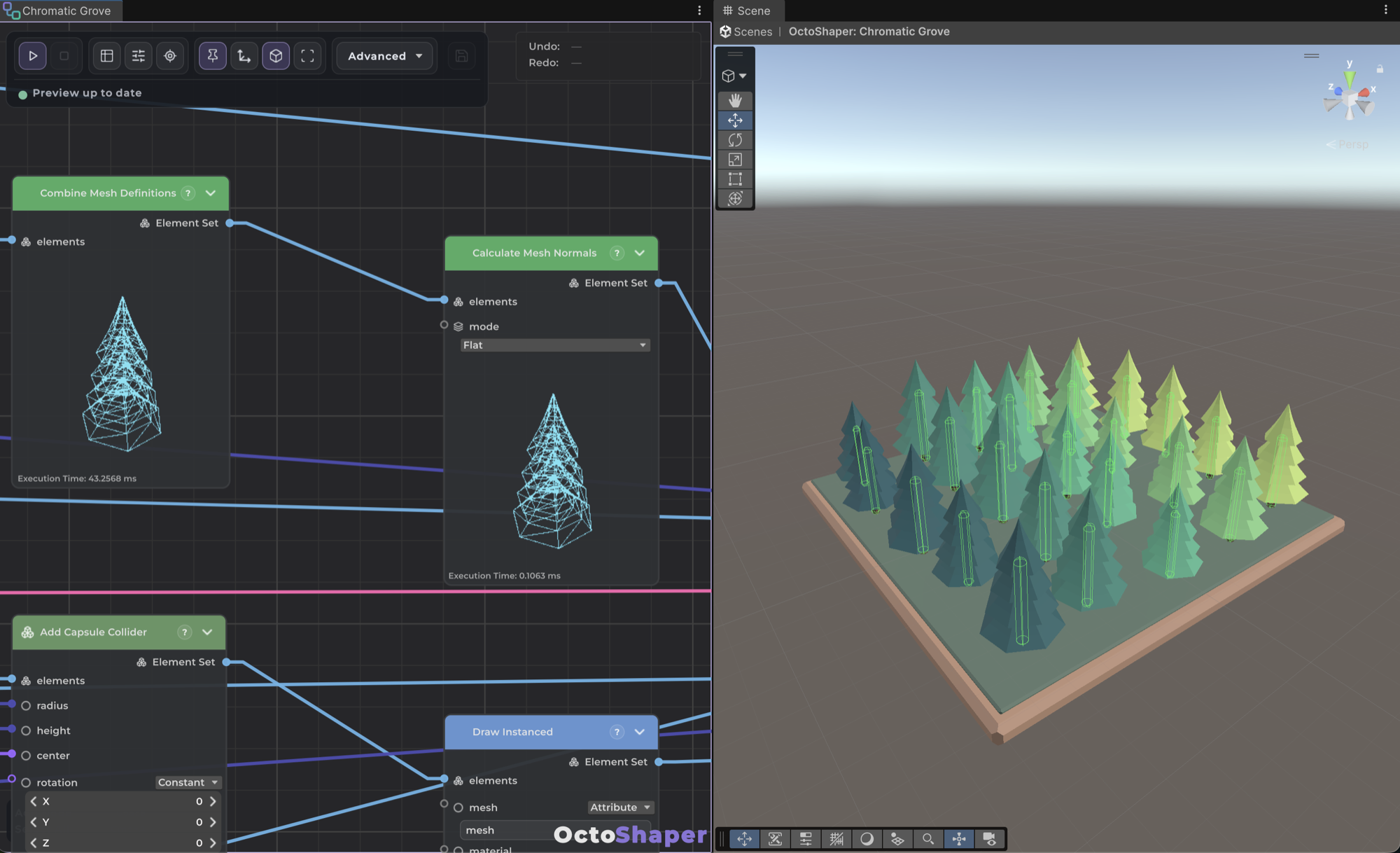
When a graph is open, the Scene view shows an isolated Preview Stage. What you see comes from the pinned node, which is Main Output at first, or from the selected node when nothing is pinned.
- Preview Stage in the graph toolbar toggles the stage. Unity's breadcrumbs take you back to your scene.
- Frame Preview fits the whole result in view, GPU instances included.
- Pin scene preview keeps one node's result on screen while you select others.
- Pin scene gizmos keeps a node's gizmos visible, which is handy for splines and bounds.
Stage objects are temporary. Change the graph, its parameters or its handles, not the generated objects. The stage closes when you enter Play Mode and can be reopened afterwards.
Inspect any node
- Show Spreadsheet lists every row and attribute of the previewed node. It's the quickest way to see what a node really produced.
- Raw mesh definitions show as wireframes until you realize and draw them.
- Non-readable imported meshes show their bounds instead of triangles.
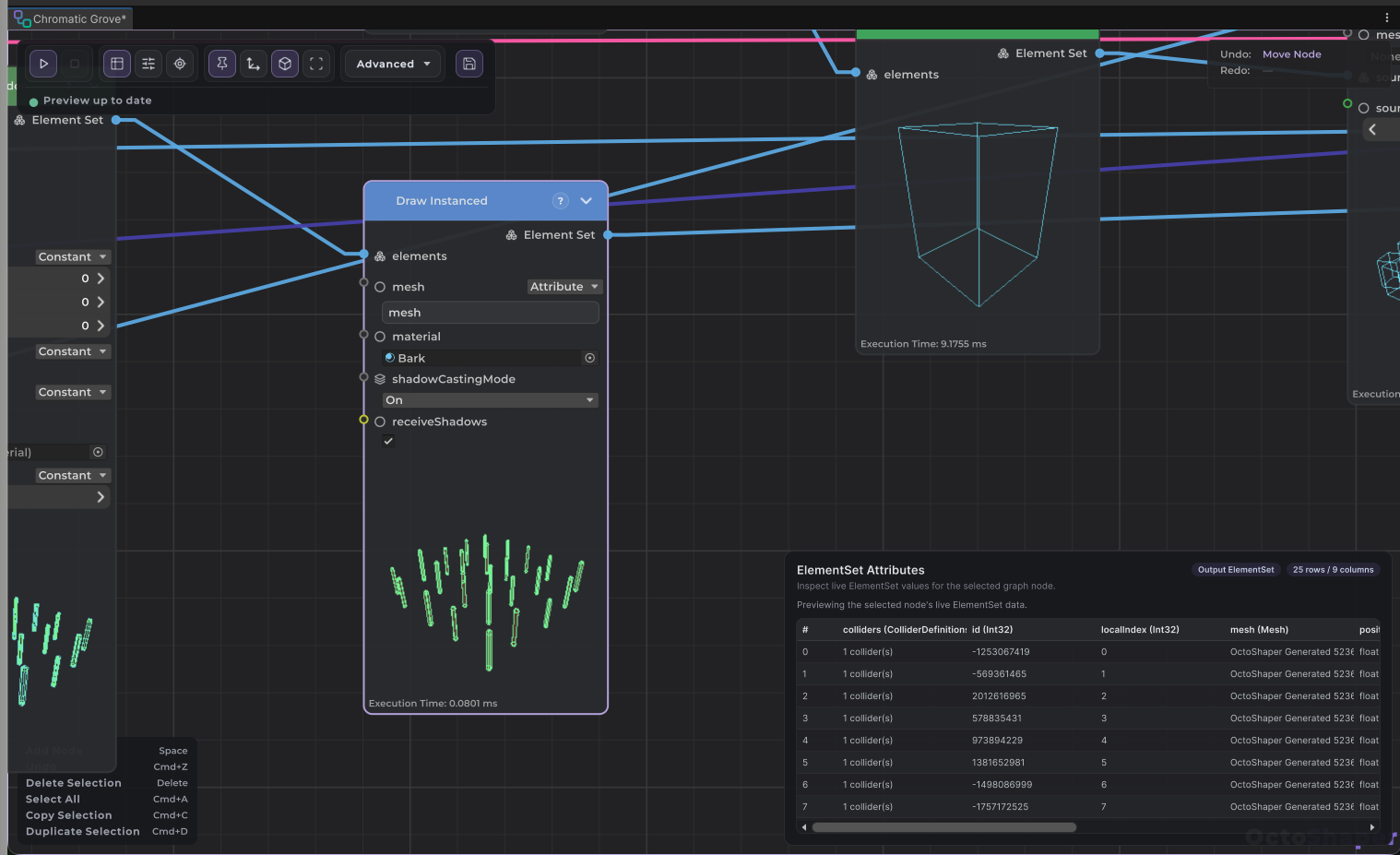
The Advanced menu
| Option | What it does |
|---|---|
| Sync / Async | Choose how previews run. Async keeps the editor responsive. See Sync vs async. |
| Auto update | Re-evaluate after every change. Turn it off on heavy graphs and use Evaluate when you're ready. |
| Node previews | Thumbnails on nodes. Disable them to save work on large graphs. |
| Organise nodes | Automatically lay out the graph. |
Async previews spread work across editor updates and keep showing the last successful result while processing. Changing a value cancels the running preview and starts a new one. Selecting nodes and moving the camera reuse results that are already evaluated.
If a preview fails, the graph stays editable. Fix the node and the next evaluation picks it up.
Scene handles
With the stage open, the OctoShaper Tools overlay lets you drag Vector3 positions and edit splines directly in the scene. See Context manipulation and handle space.