
AI Integration and Editor Automation
OctoShaper 1.2 includes an agent skill and an optional Unity 6 command-line bridge. A coding agent can look up nodes, create or edit a graph, render views and refine the result, without generating C# between iterations. The graphs it makes are normal assets you can open and keep editing.
How it fits together
Your agent  ──►  Unity CLI  ──►  OctoShaper command  ──►  graph assets + PNG renders
   ▲                                                         │
   └──────────── reads renders, sends the next edit ◄────────┘
OctoShaper doesn't include an AI model or service. You bring your own agent, and OctoShaper gives it a skill (instructions and references) plus a command to drive the editor.
Set up (Unity 6)
- Install the Unity CLI by following Unity's CLI setup guide.
- Open your Unity 6 project with OctoShaper installed, and add Unity's optional Pipeline package once:
unity pipeline install --project-path "/path/to/project" --package-version 0.6.0-exp.1
- Let Unity finish compiling. OctoShaper's small CLI assembly switches on by itself when Unity 6 and Pipeline 0.6.0-exp.1+ are present.
- Check that the command is there:
unity status --format json
unity command octoshaper --operation help --project-path "/path/to/project" --format json
Use the exact project path that status returns, and don't open a second editor on the same project. If the command is missing, look for compile errors and check that Pipeline is installed.
Give your agent the skill
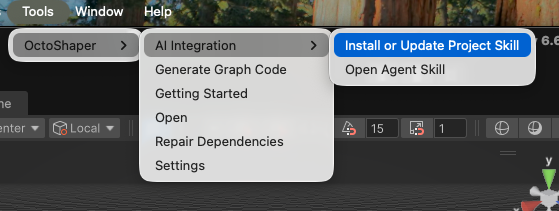
Choose Tools > OctoShaper > AI Integration > Install or Update Project Skill. It copies the skill and its references to <project>/.agents/skills/octoshaper/, where compatible agents find project skills. That folder is managed by OctoShaper, so keep your own notes elsewhere.
For agents with a different skill folder, copy the whole octoshaper folder, references included. Open Agent Skill shows the bundled file, and the CLI's help operation returns its full text.
Try it
Example prompt: "Use the OctoShaper skill to create a reusable graph from this reference image. Compare renders with the image and refine the silhouette and proportions. Expose useful parameters."
What happens under the hood:
| Operation | Use |
|---|---|
iterate |
Save graph edits and render in one call. The agent inspects the PNGs and sends the next edit with the returned revision. |
preview |
Render an existing graph, or compare parameter settings. |
previewNode |
Render just one upstream branch, including unfinished meshes. |
generate, status, render |
Generate code and check the real runtime result when the graph is ready. |
Agents give nodes persistent keys and use named ports, so they don't have to track GUIDs. Renders start from one 512 px view, with custom cameras for close-ups and reference matching.
Automate from C#
Editor scripts can call the same operations without the CLI, on Unity 2022.3 too:
GraphAutomation.Invoke(operation, requestJson)inCuriousTrove.OctoShaper.Editor.Automationthrows on failure.InvokeDetailed(operation, requestJson)returns structured failures instead: the root cause, node and input context, and any saved revision or finished captures.
Both run on Unity's main thread. Always check success == false in the decoded result, even when the call itself succeeded. After a failed iterate that reports graphSaved: true, continue from the returned graph.revision instead of rebuilding.
The automation API is experimental. The bundled CLI reference (references/cli.md in the skill) documents every operation, field and value format.
Related editor APIs
GraphPresentation.Create(graph, showParameters)embeds a read-only snapshot of a graph in your own UI Toolkit panel.OctoShaperInstallreports installation and version information.OctoShaperSampleslists and imports the bundled samples.